
Evolve’s Applicant Tracking System (ATS) Automation feature focuses on closing requisitions and updating Candidate Workflow Status.
Once the Automation(s) are created, the recruiter will be prompted to select the desired Automation flow they want to execute.
Audience
Recruiters
Use Cases
- An updated recruiter experience when closing or filling a requisition.
- Automation status updates are sent to the recruiter via email.
Prerequisites
Please see the Automation Engine Configuration article.
Closing/Filling Automated Type
This section outlines the recruiter’s experience when closing or filling a requisition using an automated configuration type.
Close a Requisition
Navigate to the desired requisition.
Click Close.
Select Close This Requisition, then click Close.
Select the radio button next to the desired Automation.
Click Next.
Click Run.
NOTE: If you click Back, then Cancel, and then Cancel again, the Automation will be canceled and the requisition will be closed.
You will be returned to the Requisition Summary screen.
Click the Activity tab.
You will see when the Automation process started and ended.
If you click a candidate associated with the requisition and navigate to the Activity tab, you will see the actions configured for the Automation.
If you click a candidate’s Message, you will see a copy of the email sent to the candidate.
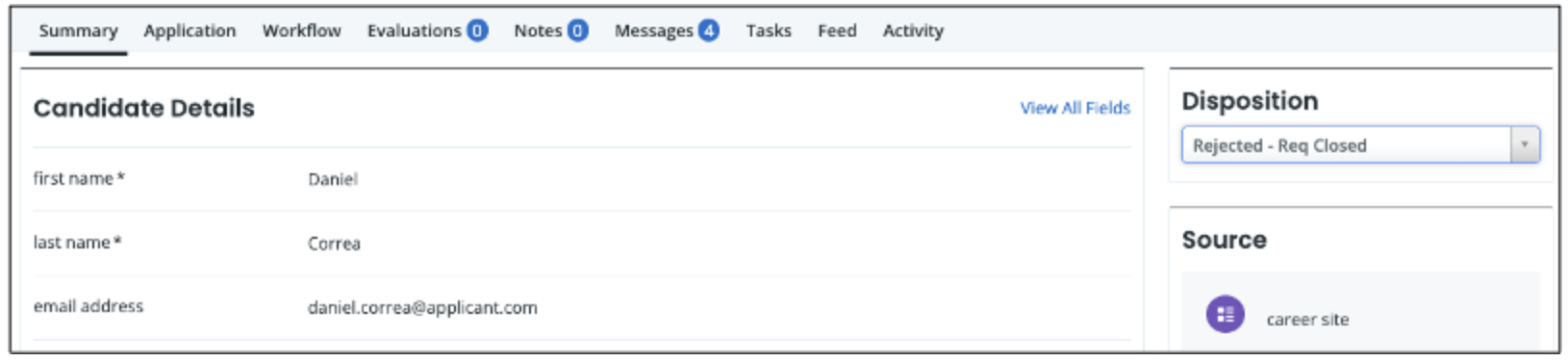
If you click a candidate’s Summary, you will see the updated Disposition set by the Automation.
 Closing/Filling On-Demand Type
This section outlines the recruiter’s experience when closing or filling a requisition when an Automation Type of on-demand is configured.
Navigate to the desired Filled/Closed requisition.
Click Run Automation.
Select the radio button next to the desired Automation.
Click Next.
Click Run.
NOTE: If you click Back, then Cancel, and then Cancel again, the Automation will be canceled and the requisition will be closed.
Click the Activity tab.
You will see when the Automation process started and ended.
If you click a candidate associated with the requisition and navigate to the Activity tab, you will see the actions configured for the Automation.
If you click a candidate’s Message, you will see a copy of the email sent to the candidate.
If you click a candidate’s Summary, you will see the updated disposition set by the Automation.
Fill a Requisition
NOTE: In this use case, the Automation Type is Automation (filling the requisition automatically triggers the Fill Requisition Automation).
Navigate to the desired requisition.
Click the candidate you are hiring.
Click Offer Accepted.
Complete the Add Hire form as needed.
Select Close This Requisition.
Click Save.
Select the radio button next to the desired Automation.
Click Next.
Click Run.
NOTE: If you click Back, then Cancel, and then Cancel again, the Automation will be canceled and the requisition will be closed.
You will be returned to the Requisition Summary screen.
Click the Activity tab.
You will see when the Automation process started and ended.
If you click a candidate associated with the requisition and navigate to the Activity tab, you will see the actions configured for the Automation.
If you click a candidate’s Messages tab, you will see a copy of the email sent to the candidate.
If you click the candidate’s Summary tab, you will see the updated disposition set by the Automation.
Candidate Workflow Status
NOTE: In this use case, the Automation Type is Automation (the trigger will be viewing the candidates’ time in the selected Workflow State. No recruiter action is required to execute the configured Actions.)
Navigate to the desired candidate.
Click the candidate’s Activity tab.
View the activities taken by the automation.
FAQs
Q. Can multiple Automations be configured?
A. Yes, Administrators can create multiple Automations. However, only one automation can be processed when closing or filling a requisition.
Q. Why is a Service User Account needed during the Automation configuration?
A. Evolve ATS (Jobvite) uses Role-Based Access Controls (RBAC) to grant/restrict access to Candidate Messages, Disposition, or move a candidate’s Workflow state. As a result, the Service User Account’s RBAC configuration will be used instead of the recruiters.
Q. Can I stop an Automation process after I click Run?
A. No. You cannot cancel the automation process once it is initiated.
Q. Is the Automation limited to the number of applications it can update (Disposition, Email candidate, or a candidate’s Workflow state)?
A. No. This feature is designed to handle high-volume requisitions.
Q. Will the automation process update a candidate already rejected/inactive?
A. No. The Automation feature will only process Active candidates. In other words, if a workflow state is configured to consider a candidate inactive when it reaches this state, candidates in that state will not be included.
Q. How will a recruiter know when the Automation process has been processed?
A. The system will send an automated email to the recruiter advising them that the process has been completed.
Q. Can I select a different Disposition value for a subset of candidates?
A. No. The Automation Engine will set the Disposition Value to the value configured by your Admin. We recommend configuring the Automation Engine to set the Disposition to, for example, "Other Candidate Selected."
Q. Is there a way to stop automation after it has started?
A. No.
Q. Is there a limit to the number of applications an automation can run?
A. The maximum number of applicants in a given process is 100,000.
Q. How do we run the automation on previously closed/filled requisitions?
A. This is a configuration item. It is possible. Please review the Automation Engine Configuration article.
Q. How long does the automation take to complete?
A. This depends on the data size that the automation is pulling in. The majority should be completed within 1 to 2 minutes.
Q. Does it start instantly or run on a specific timed cycle?
A. This answer depends on which automation you are using. Requisitions auto-run when the requisition status is updated (in real-time). On Demand, when a user initiates the automation. The Candidate automation runs hourly to determine if there is anything to process.
Q. Is there a place to view the status of the automation in progress?
A. There is a Run Log within the automation Admin menu.
Q. Will any messages be displayed when an automation fails?
A. Within the automation Admin menu is a Run Log containing a link for processed records. There is an explanation of the error. If not, it will advise you to contact our Support team.
Q. What are the reasons the automation fails?
A. This can depend on the configurations. It will fail if configured to move to Rejected, but the workflow doesn't contain Rejected.
Q. Can we schedule/delay the automation until the requisition is closed/filled?
A. No.
Q. Will automation run automatically if requisitions are closed (not hired) via Workday integration?
A. No. The automation is not connected to the APIs.
Q. Why did the automation not run for a candidate that meets the "Days In Workflow State" condition?
A. Edits to the automation after a candidate is moved to the trigger state can disrupt the "Days in Workflow State" count, resulting in the candidate being excluded from the automation. If you are using automation in a staging environment, refreshes could also affect it.
Q. Why do I not sell all of my workflow options in the dropdown?
A. For ALL workflows to appear in the dropdown, they have to appear in all Active and Inactive workflows.